Introduction
Have you ever noticed your notification count blowing up, but you aren’t sure exactly where the traffic is coming from? You post a photo or Reel, and suddenly the engagement metrics spike. Naturally, you ask yourself: “How to see who shared my Instagram post?”
Sharing is one of the strongest signals to the Instagram Algorithm that your content is valuable. Whether it’s a user reposting your content to their Instagram Story or sending it via Direct Messages (DM), tracking these shares is crucial for measuring your growth.
However, Instagram prioritizes user privacy, which makes tracking every single share a bit tricky. In this comprehensive guide, we will break down exactly how to view your share history, uncover the “hidden” shares, and explain why you might be seeing a share count in your analytics but no names attached to it.
Can You See Who Shared Your Instagram Post?
The short answer is: Yes and No.
It depends entirely on how they shared it and what their Privacy Settings are.
- Public Story Reshares: Yes, you can usually see these.
- Private Story Reshares: No, these will be counted in numbers but won’t show the username.
- Direct Messages (DMs): No, Instagram protects the privacy of private chats. You can see the count, but not who sent it.
Let’s dive into the specific methods to track these interactions.
Method 1: How to See Who Shared Your Instagram Post to Their Story
The most common way users share content is by adding it to their Story. If your account is Public, anyone can repost your content. Here is how to find the list of people who have currently reshared your post.
Step-by-Step Guide:
- Open the Specific Post: Go to your profile grid and tap on the photo or Reel you want to check.
- Look for the “View Story Reshares” Option:
- Tap the three dots (…) in the top right corner of the post.
- If there are active public shares (within the last 24 hours), you will see an option labeled “View Story Reshares”.
- Check the Results: Tapping this will open a page showing a grid of the current public Stories that feature your post. You can click on their username to visit their profile or thank them.
Important Note: If you do not see the “View Story Reshares” button, it means either nobody has shared the post to their Story recently, or the 24-hour window for those Stories has expired.
Method 2: Using Instagram Insights (For Business & Creator Accounts)
If you are serious about growth, you must switch to a Professional Account (Business or Creator). This unlocks Instagram Insights, a powerful analytics tool that gives you the hard data, even if it doesn’t always give you the names.
How to Check Share Counts:
- Navigate to the post you want to analyze.
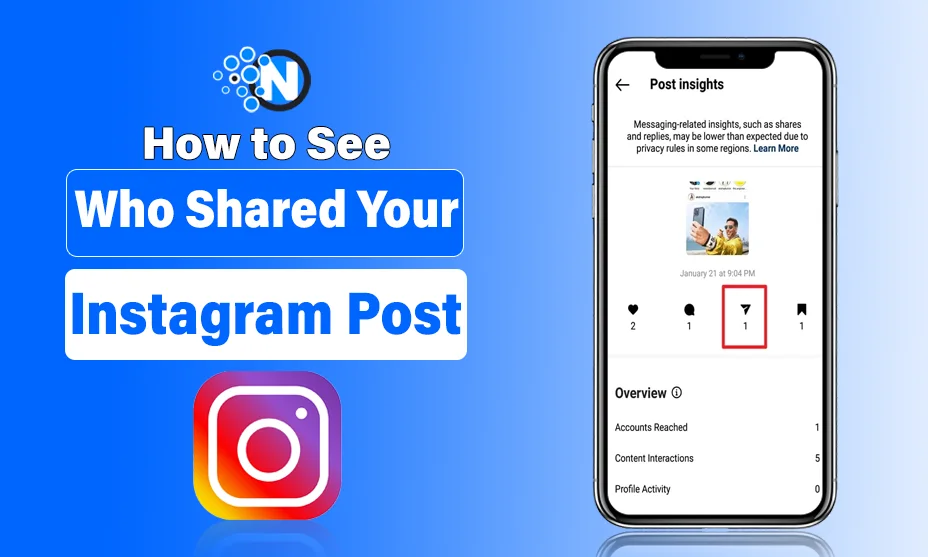
- Tap on the small button labeled “View Insights” (usually located below the image on the left).
- Look for the Paper Airplane Icon.
- The number next to this icon represents the Total Shares.
What Does This Number Include?
This metric combines:
- Shares to Public Stories.
- Shares to Private Stories.
- Posts sent via Direct Message (DM) to other users or groups.
While Insights won’t give you a list of names like “John Doe shared this,” it is excellent for understanding which content creates Virality. A high share count indicates your content is relatable and save-worthy.
Why Can’t I See Who Shared My Instagram Post? (The Missing Data)
This is where most users get frustrated. You check your Insights, and it says “50 Shares,” but when you check for Story Reshares, the list is empty. Why is there a gap?
1. The “Private Account” Limitation
If a user with a Private Account shares your post to their Story, Instagram counts the action in your analytics (the number goes up), but it will not show you their identity to protect their privacy. You strictly cannot bypass this.
2. The 24-Hour Expiration
Instagram Stories disappear after 24 hours. If someone shared your post two days ago, the link is broken, and their name will vanish from the “View Story Reshares” list, even though the statistical count remains in your Insights.
3. Direct Message (DM) Privacy
When someone hits the paper airplane icon and sends your Reel to a friend in a chat, this is a Dark Social metric. Instagram treats DMs as private conversations. You will never be able to see who sent your post to whom in a DM.
Can Third-Party Apps Show Who Shared My Post?
You might have seen apps on the App Store or Google Play claiming to reveal “Stalkers” or “Secret Sharers.”
Warning: Do not use these apps.
Instagram’s API (Application Programming Interface) does not share private user data with third-party developers. Apps claiming to show you who shared your post via DM or private stories are often:
- Scams designed to steal your login credentials.
- Inaccurate, showing random followers instead of real data.
- Risking a Shadowban, as Instagram detects unauthorized logins.
Stick to the official Instagram app for reliable data.
How to Check Who Mentioned You in a Story
Sometimes, a share comes with a “Mention” (tag). This is easier to track than a generic share.
- Open your Notifications (Heart icon).
- Filter by “Mentions & Tags”.
- If someone shared your post and typed “@YourUsername” on top of it, it will appear here.
- You will also receive a DM in your “Requests” or “Primary” inbox saying, “Mentioned you in their story.”
Strategy: How to Encourage Visible Shares
Since you can’t see every hidden share, your goal should be to encourage Public Shares so you can engage with your community.
- Add a Call-to-Action (CTA): In your caption, write “Share this to your Story if you agree!” or “Send this to a friend who needs to hear this.”
- Create “Add Yours” Templates: Use the “Add Yours” sticker in your own stories. When people interact with it, their response is public and linked to your original profile.
- Engage Immediately: When you do see someone share your post, repost it to your own Story and thank them. This positive reinforcement encourages others to share your content too, hoping for a shoutout.
Conclusion
Learning how to see who shared your Instagram post is a mix of using the right tools and accepting privacy limitations. While you can easily view public Story reshares through the “View Story Reshares” option, DM shares and private account interactions will always remain a mystery due to Instagram’s privacy policies.
Focus on the Total Share Count in your Insights rather than stressing over individual names. A high share count means your content is resonating—and that is the ultimate key to growing on social media.
Frequently Asked Questions (FAQs)
Q: Can I see who sent my Instagram post to someone else?
No. If someone sends your post via Direct Message (DM), Instagram counts it as a share in your Insights, but you cannot see the username of the sender or the receiver.
Q: Why are my shares not showing up?
If your Insights show shares but you can’t see “View Story Reshares,” it likely means the shares were done via DMs or by private accounts.
Q: Does Instagram notify you when someone shares your post?
Instagram only notifies you if the person tags/mentions you in the story or if they send it to you directly. It does not notify you of a generic reshare.